
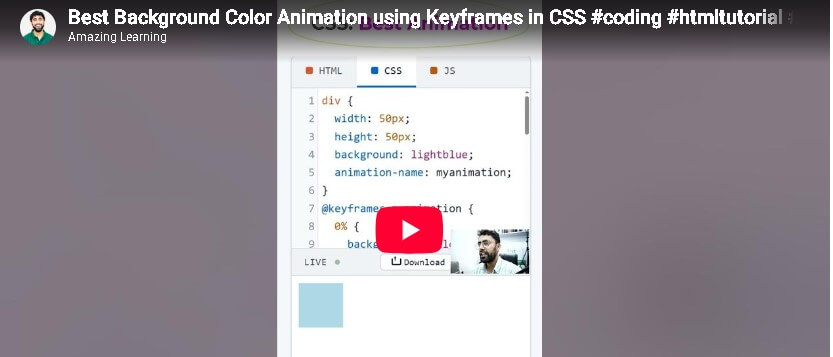
Here is the Best Background Color Animation using Keyframes in CSS
Get the code of Best Background Color Animation using Keyframes in CSS and watch video tutorials. You can practice using our code editor. Our practical guide will make your learning journey much easier. You can explore the tutorial and learn.
<div></div>div {
width: 50px;
height: 50px;
background: lightblue;
position: relative;
animation-name: myanimation;
animation-delay: 2s;
animation-duration: 4s;
}
@keyframes myanimation {
0% {
background: yellow;
left: 0px;
top: 0px;
}
25% {
background: blue;
left: 110px;
top: 0px;
}
50% {
background: green;
left: 110px;
top: 110px;
}
75% {
background: brown;
left: 0px;
top: 110px;
}
100% {
background: orange;
left: 0px;
top: 0px;
}
}Best Background Color Animation Using Keyframes in CSS
Background color animation is a simple yet effective way to make a website look more attractive and engaging. Instead of using a single background color, you can create smooth color transitions that change automatically over time. This effect is useful for website backgrounds, landing pages, banners, hero sections, and creative web design projects.
CSS provides a powerful feature called @keyframes that allows developers to define different stages of an animation. By combining keyframes with background colors and animation properties, you can create beautiful effects without relying on JavaScript or external libraries.
What Is Background Color Animation in CSS?
Background color animation is a visual effect in which an element’s background changes from one color to another over a specific period. The transition can be slow and subtle or bright and energetic, depending on the design you want to achieve.
For example, a website background might gradually change from blue to purple, then move toward pink before returning to its original color. This creates a continuous animation that adds movement to an otherwise static page.
CSS animations are especially useful because they can run automatically after a page loads. They also allow you to control the animation’s duration, timing, repetition, and direction.
Understanding CSS Keyframes
The @keyframes rule defines how an animation changes over time. You can specify the starting appearance, intermediate stages, and final appearance of an element.
The from and to keywords represent the beginning and end of an animation. Alternatively, percentage values allow you to define more stages, such as 25%, 50%, and 75%.
This flexibility makes it possible to create smooth background color effects with several colors rather than limiting the animation to just two.
Why Use Animated Background Colors?
Animated backgrounds can help a website feel more modern and visually interesting. They are particularly useful when you want to emphasize a section without adding extra images or complicated visual elements.
Here are some common uses:
- Landing pages: Create an engaging background for a main heading or introduction.
- Hero sections: Add subtle movement behind important website content.
- Buttons and banners: Make promotional elements stand out when animation is appropriate.
- Portfolio websites: Demonstrate creativity and modern CSS techniques.
- Creative projects: Experiment with color combinations and animation timing.
However, animation should always support the content rather than distract visitors. A background that changes too quickly or uses too many bright colors can make text difficult to read.
Tips for Creating Better CSS Background Animations
Choosing the right colors is one of the most important parts of the design. Colors that blend naturally often produce a smoother and more professional result. For example, blue, purple, and pink can create a modern appearance, while green and turquoise may suit nature-inspired websites.
Animation duration also matters. A slower transition usually works better for large backgrounds because it feels calmer and allows visitors to focus on the content. Faster animations may be suitable for small interactive elements, but they should be used carefully.
Text readability should remain a priority. Always maintain sufficient contrast between the background and foreground content, especially for headings, buttons, and important information. Test your design on different screens to ensure the colors remain comfortable to view.
It is also good practice to respect visitors who prefer reduced motion. Some people experience discomfort from unnecessary movement, so providing a way to limit animations or following the operating system’s reduced-motion preference can improve accessibility.
Common Mistakes to Avoid
One common mistake is using too many colors in a single animation. Although a large color palette may seem creative, it can make the design feel chaotic. Start with two or three complementary colors and add more only when they improve the overall appearance.
Another mistake is ignoring performance and accessibility. CSS background animations are often lightweight, but complicated effects combined with other moving elements can make a page feel overwhelming. Keep animations simple, test them on mobile devices, and avoid rapid flashing effects.
Finally, remember that an animated background should not interfere with navigation, buttons, or other interactive elements. The website should remain easy to use even when the animation is running.
Conclusion
Background color animation using CSS keyframes is a useful technique for creating modern and attractive websites. It allows developers to combine multiple colors, control transitions, and add movement without depending on additional libraries.
By choosing complementary colors, using appropriate animation speeds, maintaining readable text, and considering accessibility, you can create background effects that enhance your website rather than distract from it. Whether you are designing a landing page, a personal portfolio, or a creative project, CSS keyframe animations offer a flexible way to bring your ideas to life.
Ready to become a better coder? Don’t miss this tutorial!: How to create Contact Form using HTML CSS using animation
Pingback: HTML Form with Country Select Tag - Mr Digitals