
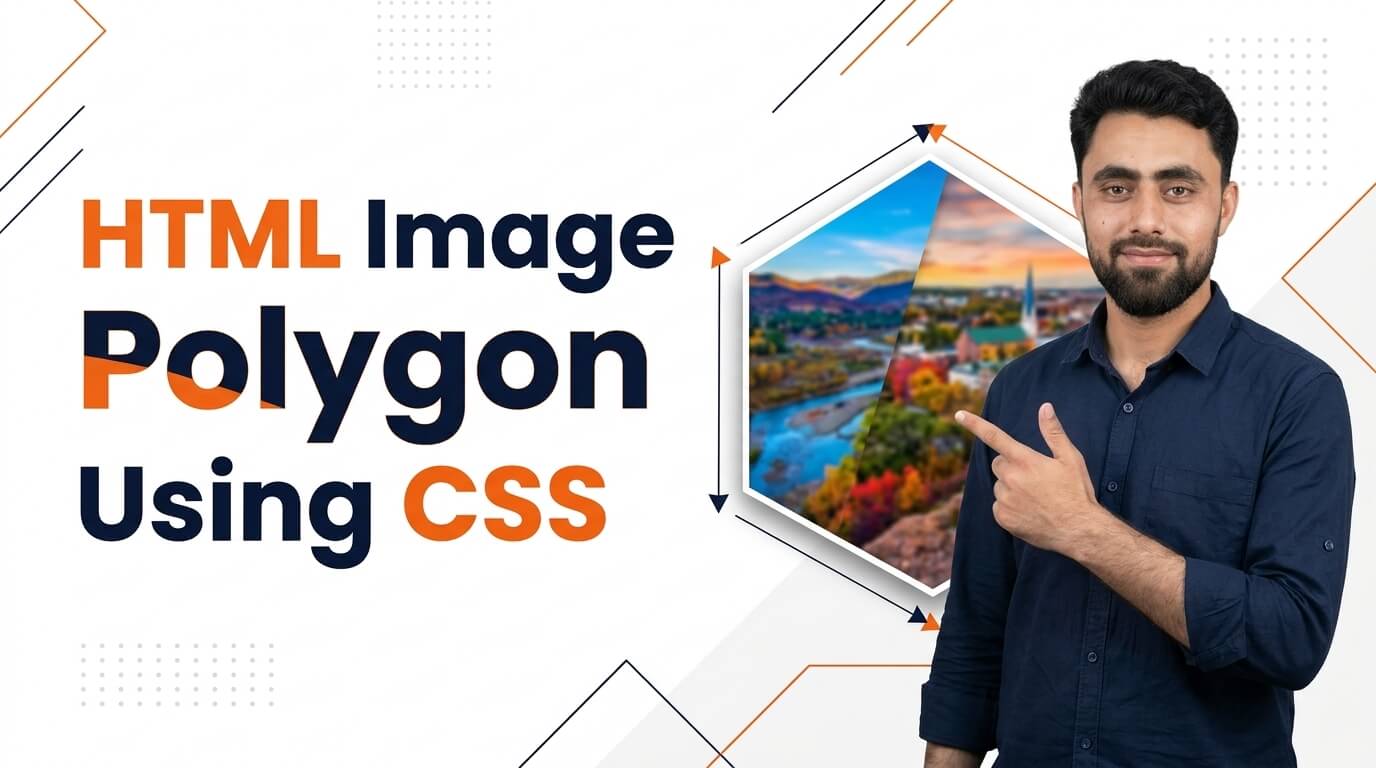
Here is the HTML Image Polygon using CSS
Get the code of HTML Image Clip Path Ellipse and watch video tutorials. You can practice using our code editor. Our practical guide will make your learning journey much easier. You can explore the tutorial and learn.
<img src="http://cdn.pixabay.com/photo/2023/09/15/11/43/architecture-8254661_1280.jpg" width="100%">img {
clip-path: polygon(50% 0, 100% 50%, 50% 100%, 0 50%);
}HTML Image Polygon Using CSS
Images are an important part of modern website design, but they do not always need to appear as simple rectangles. With HTML and CSS, developers can display images in creative polygon shapes, such as triangles, hexagons, diamonds, and other geometric designs. These shapes can make a website look more modern and visually interesting without requiring complicated image-editing software.
What Is an HTML Image Polygon?
An HTML image polygon is an image displayed inside a custom geometric shape. Instead of showing the entire image within a traditional rectangular frame, CSS can control which parts of the image remain visible.
For example, an image can appear as a triangle in a portfolio, a hexagon in a team member section, or an angled shape in a promotional banner. The image itself remains unchanged; CSS simply controls its visible area.
How Does CSS Create Polygon Images?
CSS provides a property called clip-path, which allows developers to define the visible portion of an element. One of its available functions is polygon(), which uses coordinate points to create a custom shape.
By choosing different points, developers can create shapes with straight edges and adjust the appearance of an image to suit a particular design. The coordinates determine which areas remain visible and which areas are clipped away.
HTML provides the image element, while CSS handles the shape, size, positioning, and other visual details. This combination makes polygon image designs relatively simple to maintain and customize.
Benefits of Using Polygon Images
Creative website layouts: Polygon images can make portfolios, landing pages, and personal websites stand out from more traditional designs.
Modern visual appearance: Geometric shapes can add a contemporary feel to product cards, promotional sections, and website banners.
Flexible customization: Developers can adjust the shape, dimensions, and position to match different layouts and branding styles.
No permanent image editing: Because the shape is controlled by CSS, the original image does not need to be cropped into a polygon using an image editor.
Useful for different projects: Polygon images can be used in photography websites, online stores, team profiles, galleries, and creative portfolios.
Tips for Designing Polygon Images
Start by choosing a high-quality image that looks good when cropped. Since polygon clipping hides some portions of the image, the main subject should remain visible inside the chosen shape.
Pay attention to image dimensions and positioning. A shape that works well with one photograph may hide important details in another. Adjusting the image’s position can help keep faces, products, and other important elements visible.
You should also consider responsive design. Polygon images need to look appropriate on both large screens and mobile devices. A shape that appears balanced on a desktop layout may become too narrow or awkward on a smaller screen.
For a polished result, maintain consistent spacing and use polygon shapes that complement the rest of the website. Adding too many different geometric styles can make a page feel cluttered, so it is usually better to use them selectively.
Common Mistakes to Avoid
One common mistake is creating a polygon that cuts off the main subject of the image. Always check the visible area before using the design in a finished layout.
Another issue is using shapes that are too complex for the available space. Simple triangles, diamonds, and hexagons are often easier to manage and can produce excellent visual results.
Developers should also avoid assuming that a polygon shape automatically makes an image accessible. The image still needs appropriate alternative text when it conveys meaningful information. If the image is purely decorative, its accessibility treatment should reflect that purpose.
Finally, remember that clip-path changes the visible shape of an element, not the original image file. The clipped portions are hidden from view rather than permanently removed from the source image.
Conclusion
Creating an HTML image polygon using CSS is an effective way to add distinctive shapes to a website without editing the original image. With the clip-path property and its polygon() function, developers can experiment with geometric layouts and create designs that feel fresh and professional.
By selecting suitable images, positioning subjects carefully, and testing the layout on different screen sizes, you can use polygon images to enhance a website while keeping the design clean, responsive, and user-friendly.
Want to level up your coding? Check out this tutorial, too: Shopify PayPal Credit Debit Card Buttons | Booster Theme | Smart Buttons Updated Code